Gmail Autoarchive
Like everybody else, I get a ton of email. And it’s not surprising.
Gmail’s spam filters are good, but it’s a game of cat and mouse with email “marketers”.
Email address lists get shared.
People get stealthfully opt-ed into newsletters.
Companies will do almost anything to compete for your attention.
Types of email
Broadly, my email will almost always fit into one of three categories:
- Email I never want to see.
- Email that I should see. Maybe I need to reply. But it should never leave my inbox unless I manually archive or delete it.
- Email that only has value if I see it when it first comes in. These are things that either require immediate attention, or they rapidly become completely valueless.
There’s been some great work done for emails that I never want to see. A few basic filters with wildcards do wonders. And the folks behind unfuck.email have a few pre-built filters that turbocharge this filtering.
But what about emails that rapidly lose their value over time?
Google Apps Script
With a little bit of scripting, you can have gmail automatically archive emails at specified intervals after they’re received. While it’d be great for Google to build this functionality into gmail, it only takes a few steps to build this yourself.
Here’s how to set it up:
1. Build a basic label structure.
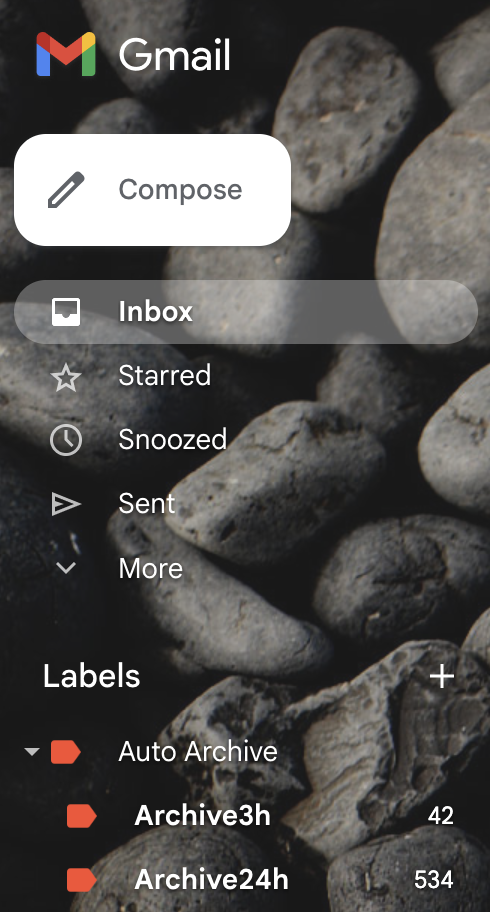
Note: if your labels are different than mine, you’ll need to adjust the script below.
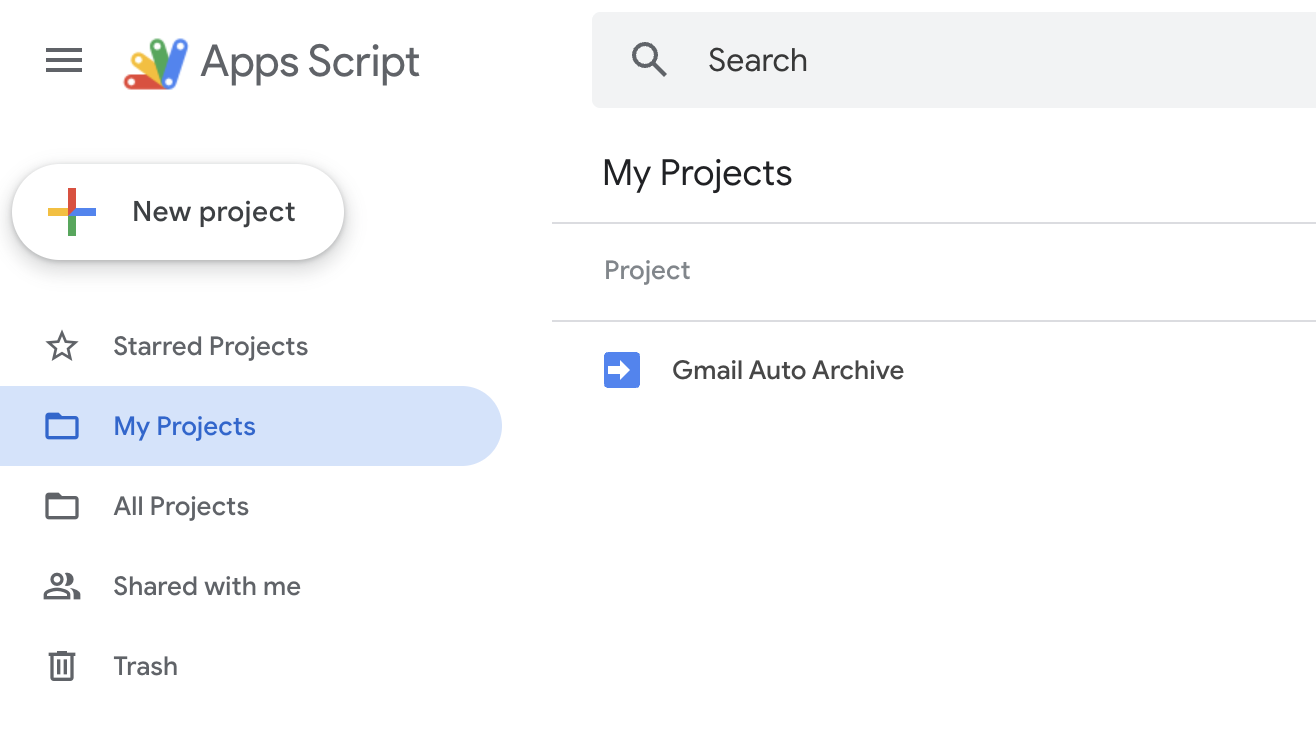
2. Using Google Apps Script, you’ll want to create a new project.
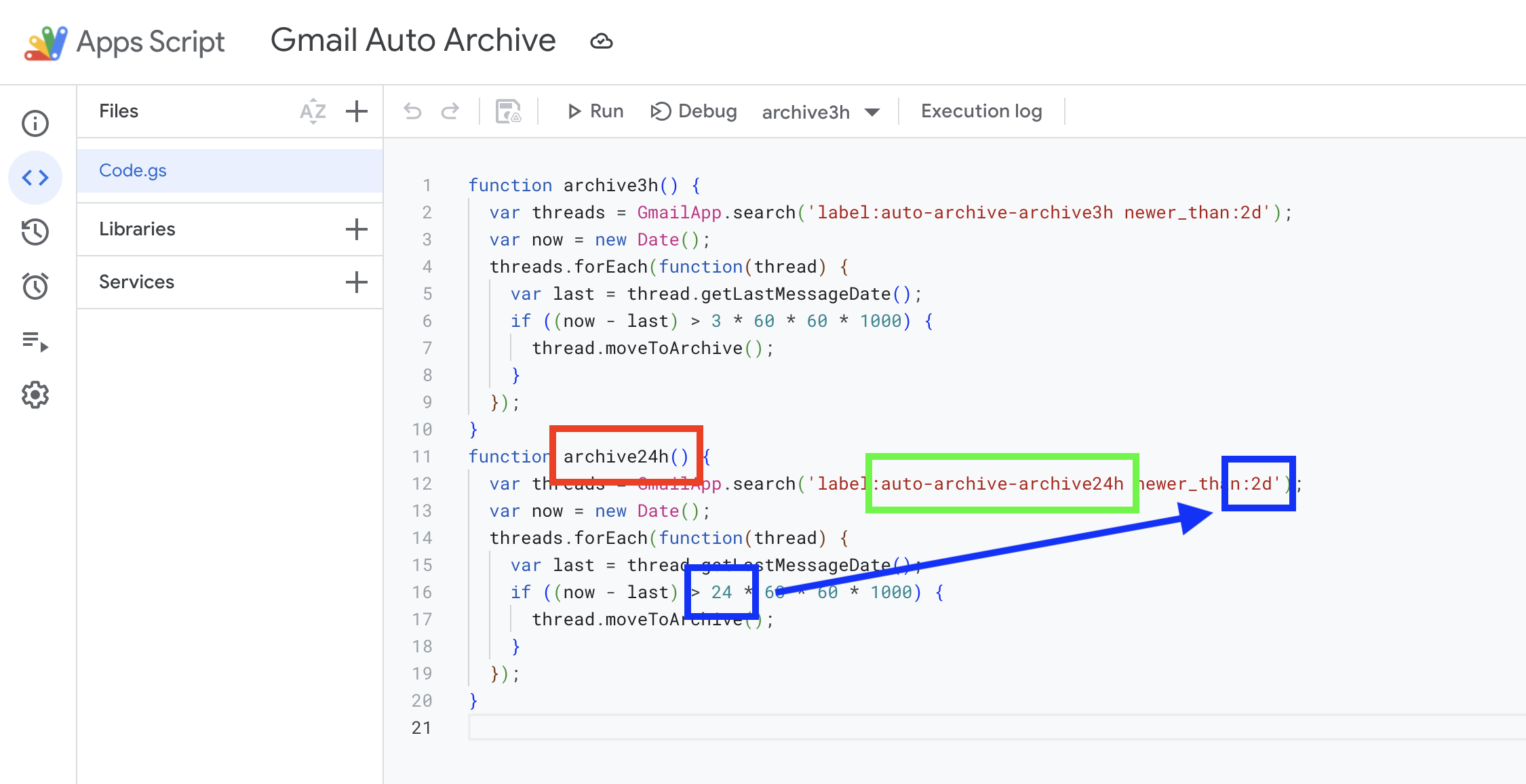
3. Copy/paste the code below into the editor. I’ve given an example for both a 3 hour timer, and a 24 hour timer.
function archive3h() {
  var threads = GmailApp.search('label:auto-archive-archive3h newer_than:2d');
  var now = new Date();
  threads.forEach(function(thread) {
    var last = thread.getLastMessageDate();
    if ((now - last) > 3 * 60 * 60 * 1000) {
      thread.moveToArchive();
    }
  });
}
function archive24h() {
  var threads = GmailApp.search('label:auto-archive-archive24h newer_than:2d');
  var now = new Date();
  threads.forEach(function(thread) {
    var last = thread.getLastMessageDate();
    if ((now - last) > 24 * 60 * 60 * 1000) {
      thread.moveToArchive();
    }
  });
}
Notes:
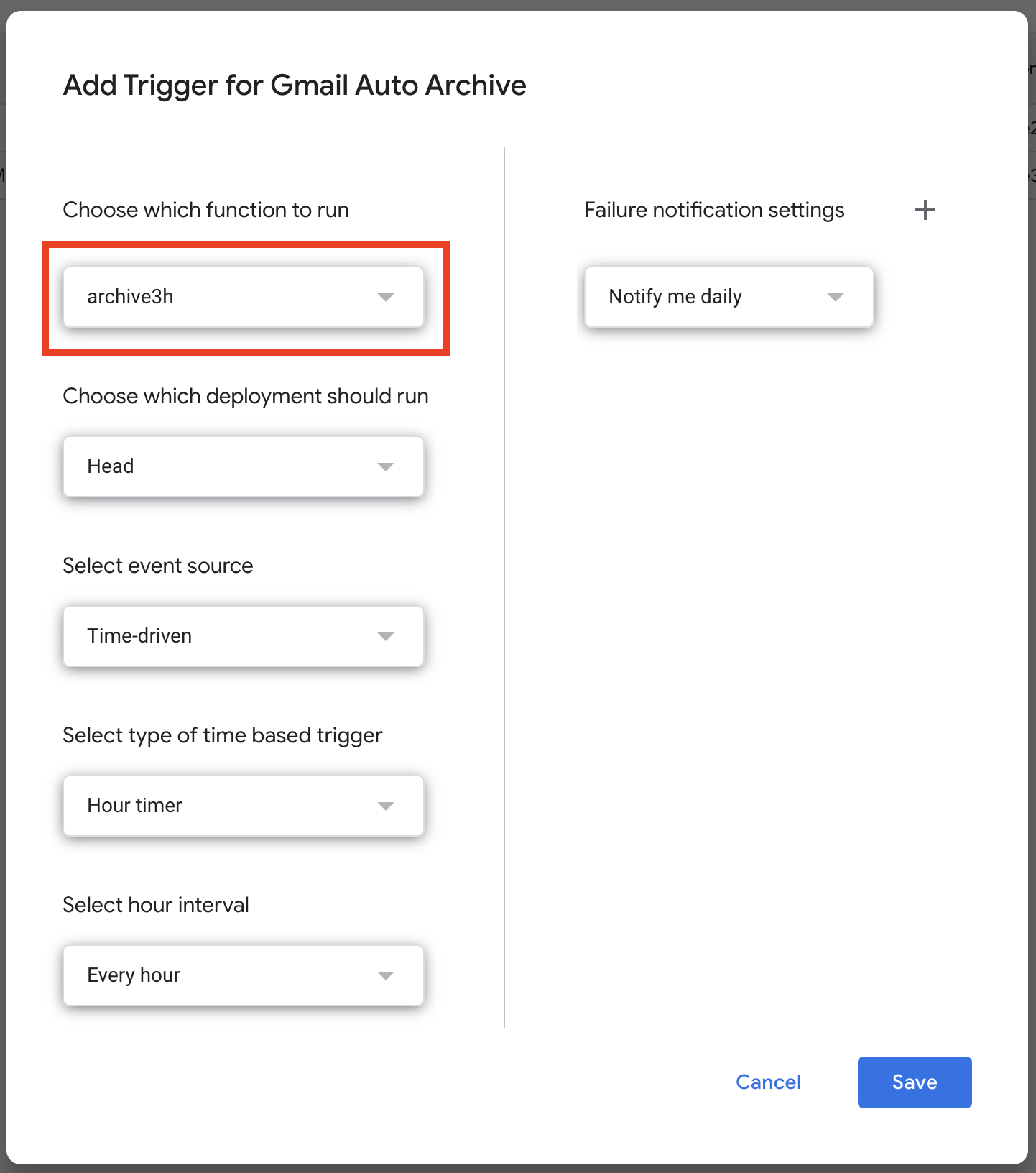
- If you change the function name (in red), you’ll need to change this in step 6, below.
- If you use a different label name or structure than me, you’ll need to update the string in the green box.
- The integer in the bottom blue box is the number of hours. If you plan to keep messages for more than 47 hours, you’ll also need to update the blue box on the right hand side of the blue arrow.
4. Once the code is modified to your liking, click the save icon in the top toolbar. Then expand the menu on the left, and select “Triggers”.
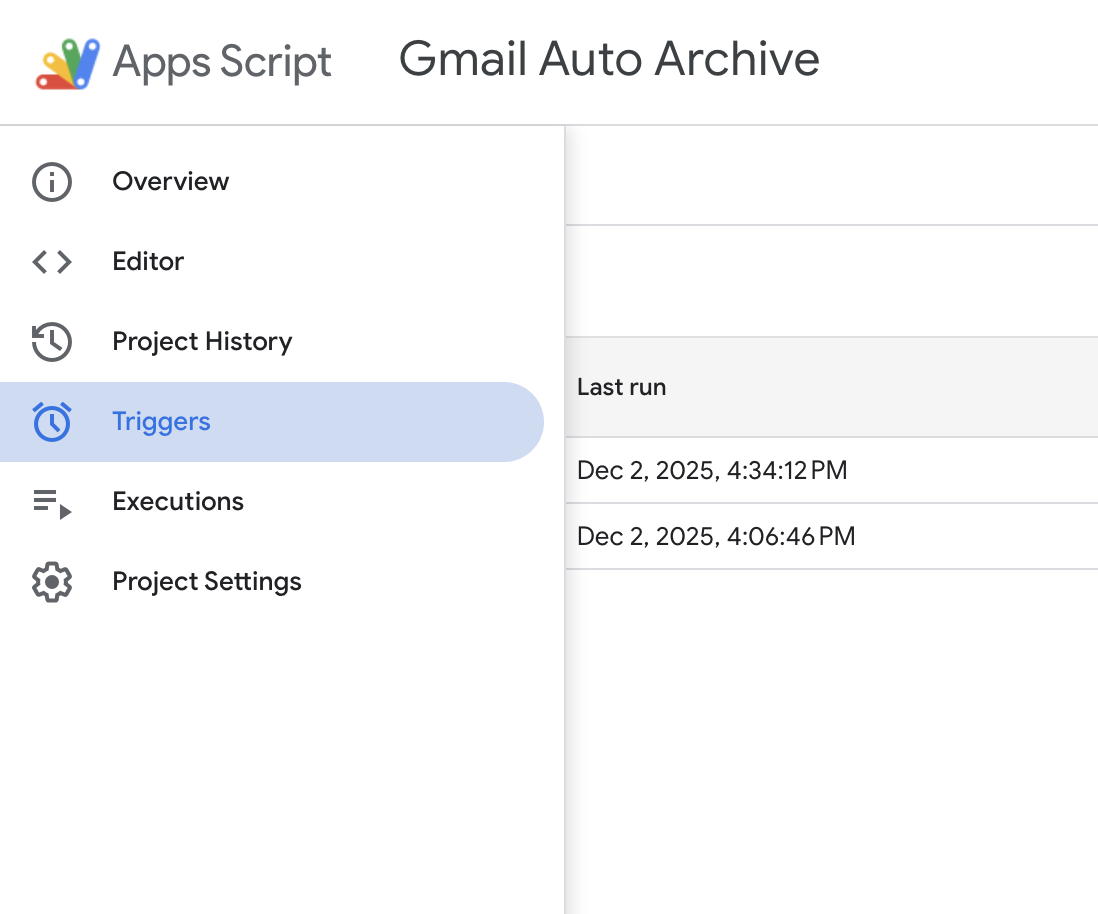
5. Click the “Add Trigger” button in the bottom left corner of the screen.
6. For each function in the script above (step 3), add a trigger. You may need to select a different function name in the red box.
That’s it!
Google will run your scripts once per hour (at a random time of their choosing), and any emails that match the parameters in the script will get archived.
All you need to do is add filters to apply the Auto Archive label when mail is received.